Compress Image Online Free – JPG, PNG, WebP, No Sign-Up
Compress Image Online Free: Shrink Photos in Your Browser — No Upload, No Sign-Up
Need to compress an image without sending it to a stranger's server? This free image compressor shrinks JPG, PNG and WebP photos entirely in your browser — drag in your picture, nudge the quality slider, and download a smaller file that looks the same. No upload, no sign-up, no watermark: your photos never leave your device.
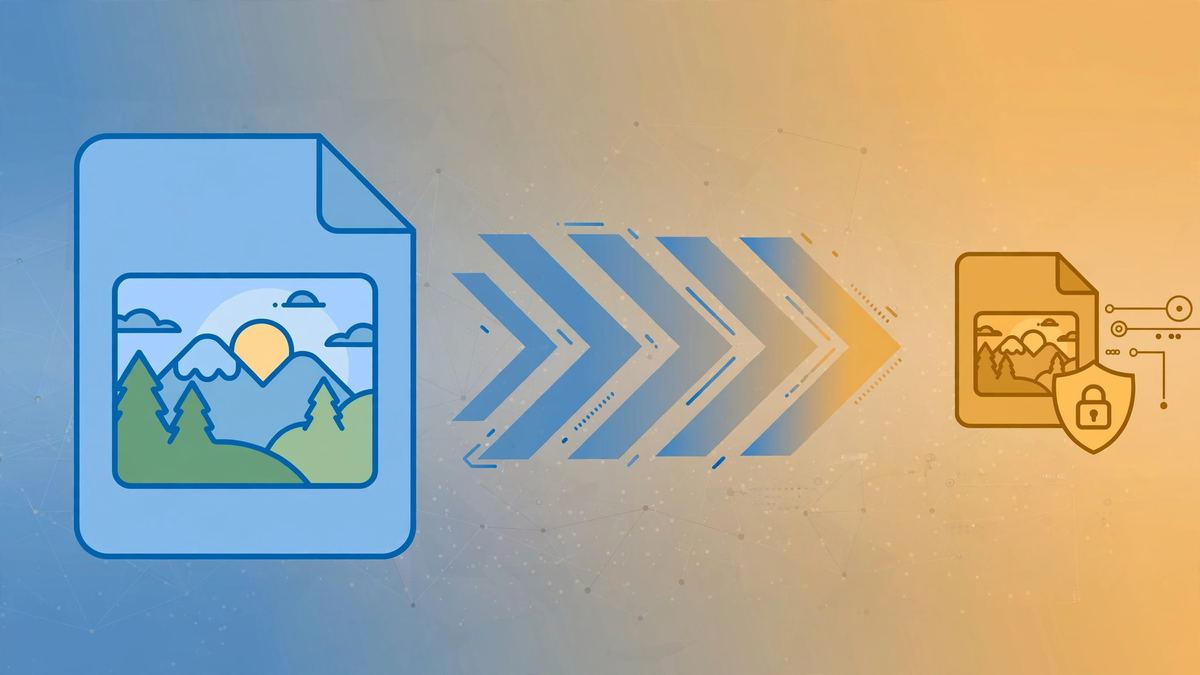
Compress Image Online Free: What Happens in Your Browser
Most pages that promise to compress image online free make you upload the photo to their server first, wait in a queue, then download the result — while your picture sits on a computer you don't control. This image compressor does the opposite: the compression code runs inside your own browser tab, so the photo is read locally, squeezed locally, and the download is generated locally. That is what makes it a genuine compress image without uploading to server tool, not a marketing slogan — you can watch your browser's network tab while it works and see that no request carries your image anywhere. It is free in the complete sense: no account, no email, no credits that run out, no trial clock, no watermark stamped on the download. You open the page, drop in a JPG, PNG or WebP, and you get a smaller file back in seconds. The honest trade-off is plain: very large photos take a moment to process on the device itself, and the tool will never beat a professional desktop editor for fine-grained control — but for the everyday job of making a photo smaller fast, nothing beats opening a page that doesn't ask for anything.
Hit File-Size Limits: Compress Image to 100KB, 50KB, 200KB or 300KB Online
The most common reason people search for a photo size reducer is a form that refuses anything over a limit. Exam portals, visa applications, university admissions, job forms and passport-photo pages all name a number: compress image to 100kb online free is the single most asked-for size, but compress image to 50kb online for strict exam forms, compress image to 200kb online for HR and government portals, and compress image to 300kb online free for resume and email portals are all everyday needs. This is where the quality slider earns its keep: lower the quality step by step and watch the output size change in real time until it lands under the limit, instead of guessing with a blind one-click button. The before-and-after size display tells you exactly what you got, so you can submit the form with confidence rather than hoping. One honest note: squeezing below about 20KB is possible but the image starts to look rough — government and exam forms that demand such tiny files usually accept the slight softness, and seeing it yourself before downloading beats a nasty surprise at upload time.
The Quality Slider: Reduce Image Size Without Losing Quality
The fear behind every compress jpg or compress png request is the same: will my photo come back looking worse? To reduce image size without losing quality is less magic and more arithmetic — JPEG and WebP are already lossy formats, so most camera photos carry far more quality than a screen can show, and the slider lets you keep the visible part while discarding the waste. Drag it down slowly and watch the preview: the file size drops fast at first while the picture looks identical, then the quality starts to visibly suffer past a certain point — and that point is exactly where you stop. To compress jpeg without losing quality in practice means staying on the safe side of that threshold, which this page makes visible instead of hidden behind a magic button. PNG files behave differently: PNG is lossless, so compress png requests shrink less dramatically but keep every pixel — choose PNG when you need transparency or crisp screenshots and text. WebP sits in the sweet spot of both worlds: a jpg compressor page that also handles WebP is worth bookmarking, because converting a heavy JPG to WebP often cuts the file in half with no visible change.
Bulk Image Compressor: Compress Multiple Images at Once, No Sign-Up
Compressing one photo is easy; compressing forty for a product listing, a portfolio update or a website migration is where most free tools give up and ask for an account. This bulk image compressor with no signup handles the batch case the same honest way it handles one file: drop in multiple images at once, pick one quality setting, and download each compressed result — no email, no credits, no paywalled batch mode. A bulk image compressor no signup page is deliberately rare because batch processing is the feature the paid tiers gate first, but this one runs everything on your device, so there is no per-image server cost to pass on to you. For photographers delivering web galleries, sellers preparing marketplace listings, or anyone who needs to compress multiple images at once online before a deadline, the workflow is three moves: drop, set quality, download all. No queue, no waiting room, no surprise limit after the tenth file.
Everyday Uses: WhatsApp, Email Attachments and Faster Websites
The daily jobs this page solves are the unglamorous ones. To compress image for whatsapp online is a constant need — messaging apps re-compress your photos anyway, so sending a properly squeezed file first means faster sends and cleaner results instead of double-compressed mush. A compress image for email attachment pass rescues the message that bounces back from a 25MB corporate limit: shrink the five photos before attaching and the email goes through on the first try. Webmasters reach for the same tool for a different reason: unoptimized hero images are the heaviest thing on most pages, so to compress images for website speed and reduce image size online — and compress png for website free for the logos and screenshots — is the cheapest page-speed fix there is, with faster loads and happier visitors as the payoff. Sellers, students, job seekers and bloggers all land on the same truth: a photo size reducer that asks for nothing and uploads nothing earns its bookmark by solving the small file-size problem ten times a week. If you came looking for a free tinypng alternative no signup, that is exactly this page — the big brand's limits, queues and uploads are precisely the three walls this tool doesn't have.
What the Top Image Compressors Do Not Tell You
The pages that rank highest for image compressor and compress image share a pattern worth naming. The most frequent winner, iLoveIMG, has almost no guide on its tool page at all — a heading and two intro sentences, no steps, no FAQ, no troubleshooting — and its workflow is upload-based, with login and sign-up in the header and an advertisement at the foot. The closest rival, imagecompressor.com, is genuinely browser-local like this page, but it offers no exact target-size control on its main tool and no FAQ or troubleshooting section on the page itself, and its pages carry advertisements. Adobe Express has the most polished guide of the three, but it is upload-based by its own terms, caps files at 40MB, offers only a slider with no typed exact target, and pushes you toward signing in to its ecosystem. The upload-based rest — FreeConvert, ImageResizer, Img2Go — all send your photos to servers, with deletion promises measured in hours, sign-up prompts for more, and advertisements around the tool. Img2Go is the one rival with an explicit target-size control, but it is upload-based, not browser-local. This page is the only one in the top set that combines all four: browser-local processing, no account, no stated file cap, and a real troubleshooting guide. That combination is the argument, and it is checkable on every rival page named here.
Blurry Photos, Lost Quality and the Website Problem
The questions no top tool page answers properly are the ones people actually ask after compressing. Why is my image blurry after compression? Usually one of five causes, in order: the quality slider went too low for that photo; the wrong format was used for the content — JPEG on text or screenshots smears edges that PNG keeps crisp; the file was compressed twice, once here and once by the platform it was sent to; the image was downscaled far below its display size and then stretched back up; or the platform re-compressed it on upload regardless of what you did. The fix follows the cause: raise the quality, switch to PNG for text, never re-compress an already compressed file, match the display size instead of shrinking blindly, and accept that some platforms will re-compress no matter what you send. How to compress an image without losing quality has a similarly honest answer: for JPEG and WebP, you cannot remove data without losing something — you can only lose so little that nobody sees it, which usually means staying around quality 80 to 85, converting to WebP, and resizing to the size the image will actually be displayed at. For PNG, compression is lossless, so quality never drops — the file just shrinks less. And to compress image for website use without losing quality, the rule is display-size first: a 4000-pixel photo displayed at 800 pixels is five times heavier than it needs to be before quality even enters the picture. Resize to display width, convert to WebP, keep quality near 80, and strip nothing you need. That workflow beats any magic button, including this page's own slider used blindly.
FAQ
Is this image compressor really free?
Yes — no account, no credits, no trial clock, no watermark. It runs entirely in your browser, so there is no per-image server cost to pass on to you. Open the page, drop in your photos, download the smaller files.
Is my image uploaded to a server when I compress it?
No. This is a compress image without uploading to server tool: the compression happens inside your browser tab, so your photo never leaves your device. Watch the network tab while it works if you want proof — no request carries your image.
How do I compress an image to 100KB online for free?
Drop in your photo and lower the quality slider while watching the output size — stop when it lands just under 100KB, then download. The before-and-after size display shows you the exact result, so you can hit form and visa-portal limits with confidence instead of guessing.
Can I compress a photo to 50KB for an exam form?
Yes. Lower the quality slider until the output size is under 50KB — most exam, visa and government forms accept the slight softness at that size. If the form demands under 20KB, keep going; the preview lets you see the quality before you download.
Will compressing a JPG or PNG reduce its quality?
It can, but you control it. JPEGs carry more quality than screens show, so the first big size drop usually looks identical; stop the slider before the preview softens. PNG is lossless, so compressing it keeps every pixel — it just shrinks less than a JPG.
Can I compress multiple images at once?
Yes — this is a bulk image compressor with no sign-up. Drop in several images, pick one quality setting, and download each result. No account, no credits, no batch-mode paywall.
Which formats can I compress — JPG, JPEG, PNG, WebP?
JPG, JPEG, PNG, WebP and GIF all go in. You pick the output format yourself — JPEG, PNG or WebP — with JPEG selected by default, so the download does NOT automatically match the format you put in: if your PNG has transparency, switch the output to PNG, because converting it to JPEG drops the transparency. JPG and WebP give the biggest size savings; PNG stays lossless and keeps transparency. One more honest note: an animated GIF comes out as a still image, because the browser re-encodes a single frame.
Can I compress an image for WhatsApp or email?
Yes. Shrink the photo here first and WhatsApp sends it faster with cleaner results than its own double-compression. For email, compress the photos before attaching so the message fits under corporate attachment limits.
Why did my compressed file come out bigger?
If the original was already tiny or highly optimized, re-encoding can add overhead instead of removing it. The tool tells you honestly when that happens — keep your original file or try a lower quality setting.
Is this a good free TinyPNG alternative with no sign-up?
That is exactly what it is: no upload queue, no file limits, no account, no watermark — the compression runs in your browser instead of on a server. The honest trade-off is that TinyPNG's larger server-side engine can squeeze slightly more on difficult images; this page wins on privacy, speed and price.
How do I compress an image to 20KB?
If you searched compress image to 20KB, here is the method: lower the quality slider step by step while watching the output size, and stop when it lands under 20KB — but know the honest limit first: at 20KB most photos look visibly soft, and some cannot reach it at all without shrinking the dimensions or switching to WebP. If the slider alone will not get there, convert to WebP, then reduce the pixel dimensions to the size the form or page will actually display, then lower quality again. If it still will not fit, the form's limit is fighting the photo's content, and a simpler image or a larger allowance is the real answer — no slider can repeal arithmetic.
Why is my image blurry after compression?
Check five causes in order: quality set too low; JPEG used on text or screenshots, where PNG keeps edges crisp; the file compressed twice, here and again by the platform; the image shrunk far below display size and stretched back up; or the platform re-compressing on upload no matter what you sent. Fix the cause you find: raise quality toward 80, switch text images to PNG, never re-compress an already compressed file, match display size, and accept platform re-compression where it happens.
How do I compress an image without losing quality?
For JPEG and WebP, aim for no visible loss rather than no loss at all: keep quality around 80 to 85, resize to the display size, and convert to WebP, which usually halves a JPG with no visible change. For PNG, compression is lossless by nature — quality never drops, the file just shrinks less. Never re-compress a file that is already compressed, because each lossy pass throws away more detail. If the image must stay pixel-perfect, PNG is the only honest choice.
How do I compress images for my website without losing quality?
Work in this order: resize each image to the width it will actually display at, convert to WebP, set quality near 80, and keep PNG only for logos, icons and screenshots with text or transparency. A 4000-pixel hero displayed at 800 pixels wastes most of its bytes before quality matters at all. Aim for under 200KB per blog or product image where you can. And compress here, in your browser, rather than uploading client or product photos to a server tool — the privacy is part of the quality of your workflow.