Free Online Teleprompter – No Sign-Up, No Download
Free Online Teleprompter: Read Your Script as Smooth Scrolling Text — No Sign-Up, No Download
This free online teleprompter turns your script into large, steady scrolling text you can read while looking straight at your camera or audience. Paste the words, set the scroll speed and font size, press Play — and read naturally instead of memorising. It is a browser teleprompter with no signup: no account, no email, no download, and it works on any device with a modern browser. Everything happens in this tab, so your script is never uploaded or stored anywhere. Whether you need a free teleprompter for YouTube videos, a script scroller online for a presentation, or a calm rehearsal tool for speeches, you can start in seconds — no teleprompter app to install.
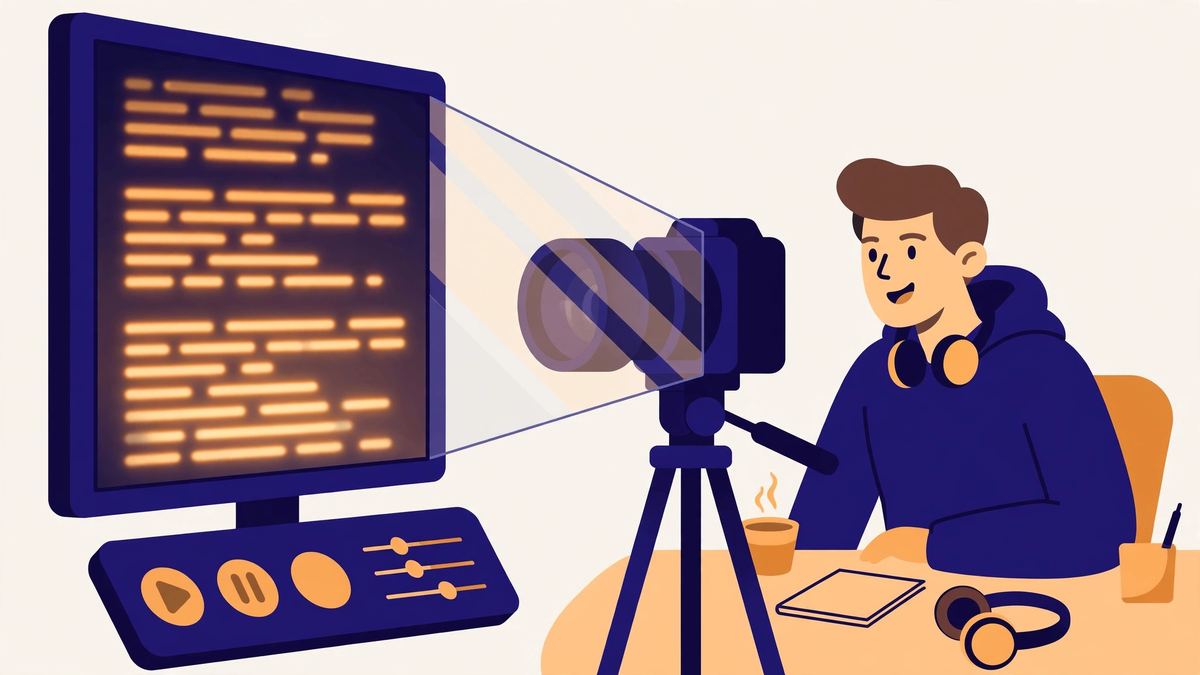
A Browser Teleprompter With No Download and No Signup
Most pages that call themselves a teleprompter online are really funnels into an app: click, create an account, install something, then discover the watermark. This page takes the opposite route — a genuine teleprompter online no download experience. Open the page, paste your script into the box, and it appears in big letters on the stage. Set the scroll speed with the slider or the arrow keys, bump up the font size until you can read comfortably, and press Play. The spacebar pauses and resumes outside the script box, Esc exits fullscreen, and an optional 3-2-1 countdown gives you a beat to look up before the text starts moving. That is the whole setup — which is why the free online teleprompter no signup question has no catch here: there is no signup to do, no email to type, no software to install. If you want a free teleprompter without download for a quick shoot, bookmark this page instead of an app store link.
Mirror Mode: When You Need a Mirror Teleprompter
An online teleprompter with mirror mode does one specific job: it flips the text so it reads correctly when reflected in the beam-splitter glass of a real teleprompter rig. Broadcast-style prompter glass sits in front of the camera lens; the screen behind it must show mirrored text, otherwise the reflection reads backwards. Turn on mirror mode here and the text reverses exactly for that setup — on a normal screen it will look backwards, and that is expected. For direct reading from a laptop, tablet or phone, keep mirror mode off and read the normal text. This one toggle is what separates a proper mirror teleprompter from a plain script scroller online: you can rehearse on a laptop today and switch to professional glass tomorrow without changing your workflow. The stage flips instantly, so check the rig, toggle once, and read.
Free Teleprompter for YouTube Videos, Zoom Meetings and Presentations
The three places this tool earns its keep are the three places people actually perform. For YouTube, it is a free teleprompter for YouTube: paste your script, put the stage window close to your camera lens, and read naturally while holding eye contact — viewers never know you are reading, which is exactly how a teleprompter for YouTube videos should feel. For calls, a teleprompter for Zoom meetings keeps your opening lines, figures and closing call-to-action on screen while your face stays toward the camera instead of drifting to a notes tab. For live talks, a free teleprompter for presentations works like a confidence monitor: big text, slow scroll, spacebar to pause while you breathe. And because there is no account and no install, you can use it on a conference room computer, a borrowed laptop or a library machine and leave nothing behind when the tab closes.
Reading Naturally: Speed, Font Size and Speech Practice
Good prompting is invisible: the audience should hear a person talking, not a person reading. Start with the scroll speed slightly slower than your speaking pace — you can always speed up mid-read with the arrow keys — and make the font size bigger than feels reasonable, because large text means fewer visible eye movements. The word count and the speaking-time estimate at a calm 150 words per minute help you plan: paste the script, see the length, and cut or expand before you record instead of discovering the overrun mid-take. A teleprompter for speech practice uses the same setup — rehearse a toast, a pitch or a classroom talk until the words feel like your own. That is how to use a teleprompter for YouTube and beyond without sounding mechanical: rehearse once at slow speed, then record at your natural pace.
Private by Design: Your Script Never Leaves This Tab
Scripts are often private — unpublished video scripts, company announcements, personal speeches, school assignments. Many rival tools ask you to upload the script to a server first, which means your words sit on a computer you do not control. This free teleprompter no signup page does the opposite: the scrolling runs entirely in your browser tab, so nothing is uploaded, stored on a server or attached to an account that does not exist. Close the tab and the script is gone. That is also why the privacy here is structural rather than promised: there is no server copy to leak. The honest limit is the flip side — because nothing leaves your device, the page cannot fetch anything from the web for you. You copy your text in, and the free online teleprompter handles the rest: big scrolling text, mirror mode, fullscreen, done.
Voice tracking vs steady scrolling: which one you actually need
One tested rival follows your voice, and the difference deserves a straight comparison, because voice tracking sounds better until its costs are counted. That rival's Flow mode is its default, and it listens while you read, advancing when it hears you — but its free voice-recognition time is metered at two minutes, and saving scripts or using its full editor needs an account, so the voice feature arrives with a clock and a sign-up wall behind it. Another rival's web prompter scrolls at a set speed only, with speech-follow described solely for its Android app, not the web tool. This page scrolls at a steady speed you set, and says so plainly: no voice following, no microphone, no listening at all. Voice following helps when a speech has long unscripted pauses, variable pace, or improvised asides, because the scroll waits for the speaker instead of running ahead. It hurts when the room is noisy, when accents or quiet delivery confuse recognition, when a misheard word jumps the scroll to the wrong line, and when a ticking free-minutes meter adds anxiety to a performance. Steady scrolling helps when the script is fixed, the pace is rehearsed, and predictability matters more than adaptation — which describes most YouTube videos, lessons, announcements, and presentations, the jobs this page is built for. The honest choice is therefore: if your speech improvises heavily and you accept a metered, account-gated feature, a voice-following tool fits; if your script is written and your pace is rehearsed, a steady scroll you control is calmer, private, and free without a clock — and this page is the second kind, on purpose.
Troubleshooting: when the scroll feels wrong
No tested rival has a standalone troubleshooting section, so this section owns the problems users actually meet, in the order to check them. Too fast or too slow: move the speed slider, and rehearse a notch under your natural pace, because most readers set the first speed too fast and then chase the text. Script ends too quickly: on a short script that is expected, not a bug — a seven-word script scrolls through in seconds at any speed, and the speed control proves itself on longer text, where a low speed visibly stretches the scroll and a high speed visibly shortens it. Text too small or too large: move the font-size slider, and remember the camera distance — a bigger font on a farther screen reads the same as a smaller font up close, so size and distance are one setting, not two. Mirror looks wrong: that is expected on a normal screen, because mirror mode flips the text for reflection in a beam-splitter glass rig, and on a normal screen it should look reversed and unreadable — turn mirror off unless a glass rig is in front of the camera. Countdown surprise: the 3-2-1 countdown before scrolling is checked by default, so playback begins with Get ready and a countdown number rather than instant scrolling — uncheck the countdown box to start at once. Script box empty when Play is pressed: Play stays disabled until text is entered, by design, so paste or type first. A problem outside this list — a scroll that stutters, a font that will not change — is worth rechecking after a reload, because the tool runs entirely in this tab and a fresh tab clears transient state without touching any server, since there is none.
Frequently Asked Questions
Is this free online teleprompter really free?
Yes — no trial, no subscription, no credits, no watermark. Open the page, paste your script, and scroll as often as you like. Because everything runs in your browser, there is no per-use server cost to pass on to you.
Do I need to sign up or download anything?
No. This is a free teleprompter no signup tool with no download: no account, no email, no install — a genuine teleprompter online no download page. If you were wondering about a free teleprompter without download, this is it: bookmark the page and press Play.
What is mirror mode, and when do I need it?
A mirror teleprompter flips the text so it reads correctly in the reflected glass of a professional beam-splitter rig. If you read directly from a screen, keep mirror mode off; if you use real prompter glass in front of your camera, turn this online teleprompter with mirror mode on.
Is my script uploaded to a server?
No. Your script stays in this browser tab — it is never uploaded, stored or shared. Closing the tab deletes it completely, because there was never a server copy.
Can I use this free teleprompter for YouTube?
Yes — that is its most common job. Paste your script, move the stage near your camera, and read while holding eye contact. Plenty of creators use it as their teleprompter for YouTube videos because it needs no install and leaves no watermark on the recording.
Does it work for Zoom meetings and presentations?
Yes. Keep your key lines scrolling beside your camera for a teleprompter for Zoom meetings, or use it as a free teleprompter for presentations when a confidence monitor would help. No account means it works even on a borrowed or office computer.
Does the teleprompter follow my voice while I read?
No — honestly, it does not. This is a steady-scrolling teleprompter, not a voice-following one: the text moves at the speed you set and you keep up with it, pausing with the spacebar when you need to. Voice-follow scrolling is a different, usually paid, technology.
Why not just install a free teleprompter app?
Apps work, but a free teleprompter app usually means an account, a download, and sometimes a watermark or paywalled features. This browser teleprompter opens in seconds, needs nothing installed, and your script never leaves your device.
Is this also an online autocue?
Yes — autocue is just another name for the same thing. If you searched for a free autocue online or an online autocue for a shoot, this page does exactly that job: paste the script, set the speed, and read.
How do I practice a speech with it?
Paste the speech, set a slow speed and a big font, and read it through as a teleprompter for speech practice. Rehearse twice: once slow to get comfortable, once at your natural pace. The word count and time estimate help you trim the script to fit your slot.
Why does playback end so quickly on a short script?
Because a short script is a short scroll: a seven-word script finishes in seconds at any speed, and that is expected, not a bug. The speed control proves itself on longer text, where a low speed visibly stretches the scroll and a high speed visibly shortens it. The 3-2-1 countdown before scrolling is checked by default, so playback begins with Get ready and a countdown number rather than instant scrolling — uncheck the countdown box to start at once.
Can I use a second screen or phone as the prompter while filming on another device?
Yes: open the page on the second screen or phone, paste the same script there, and place it as close to the filming camera lens as possible. There is no sync between devices, by design — the script lives in each browser tab — so paste it on each device you use. Mirror mode stays off unless a beam-splitter glass rig sits in front of the camera.