Convert PNG to JPG Online Free — No Sign-Up, Try Now
Convert PNG to JPG Online Free — Batch Image Format Converter, No Upload, No Sign-Up
To convert PNG to JPG online free without handing your photos to a stranger's server, this free image converter does the whole job inside your browser tab. Pick PNG, JPG or WebP as the output, adjust the quality slider, and download the converted file — the same pixel size, a new format, and your image never leaves your device. It is a genuine image format converter with no sign-up: no account, no email, no credits, no watermark on the result, and it converts multiple files at once for free.
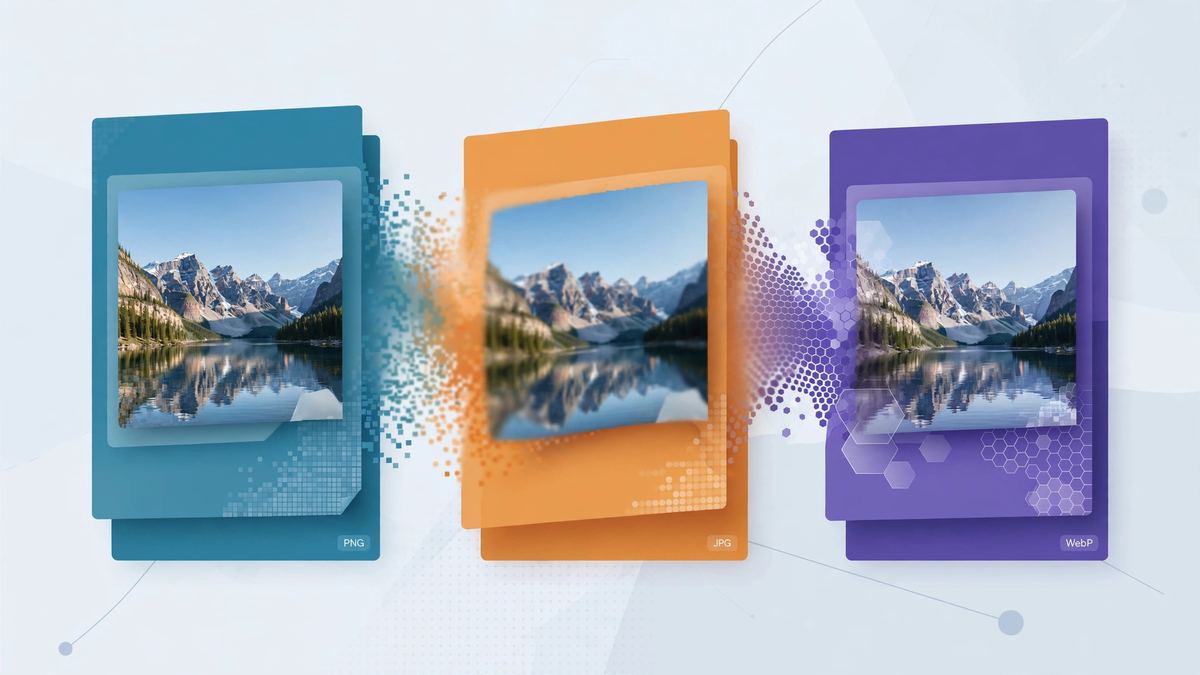
Convert PNG to JPG Online Free: What Happens in Your Browser
Most pages that promise to convert png to jpg online free make you upload the photo first — the conversion happens on their server, the file sits in their queue, and the free tier quietly limits how many you can do. This free image converter no signup page works the opposite way: the conversion code runs in your own browser using the Canvas API, so the file is read locally, re-encoded locally, and the download is generated locally. That is what makes it a real convert png to jpg online free no signup tool rather than a marketing claim — nothing to create, nothing to verify, nothing that counts against a quota. It also covers the reverse and the modern pairs: convert webp to jpg online free no upload for images saved by messaging apps, jpg to png when you need a lossless copy, convert webp to png online free for graphics that need a widely supported lossless format, and convert jpg to webp online free no signup when you want small, modern files for a website. One tool, every common pair, all local. The honest trade-off is plain: conversion happens on your device, so a huge batch on an old phone takes a moment — but for everyday use it is faster than uploading, waiting in a queue, and downloading again.
JPG, PNG or WebP: Which Format Should You Pick?
The three output formats each have a job. JPG is the universal photo format — tiny files, readable everywhere, but no transparency. PNG is lossless and keeps transparency, so screenshots, logos and text-heavy graphics stay crisp; the price is bigger files. WebP gives the best of both: photos nearly as small as JPG with optional transparency, and browsers support it well now. So: pick JPG for photos you email or print, PNG for graphics with transparency, and WebP for websites where every kilobyte counts. One honest warning answers a question people ask constantly — can jpg be transparent? No. The JPG format has no alpha channel, so transparent areas must be filled with a colour, which is exactly why this tool asks you to pick a background before converting to JPG. And the reverse trap: converting a JPG to PNG gives you a bigger file, not a better picture — the quality the JPG already threw away cannot be restored.
Convert PNG to JPG Without Losing Quality: Quality Slider + White Background
Two controls decide how your converted image looks: the quality slider and the background fill. To convert png to jpg without losing quality, set the slider high — most photos look identical down to about 80 to 90 while the file size drops noticeably, and the before-and-after size readout shows you exactly what you got. JPG quality is a dial, not a mystery: lower it slowly and watch the preview rather than guessing. The second control solves the most common conversion complaint: convert png to jpg with white background. Transparent PNG areas have no colour, so converting to JPG — which cannot store transparency — fills them with whatever background you choose. White is the default and suits documents and product photos; black or a custom colour can be better for dark graphics. Choose PNG or WebP as the output if you want to keep the transparency instead. The combination — quality you can see and a background you choose — is what most free converters skip, and it is why converted files from this page look the way you expected.
Bulk Conversion: Convert Multiple PNG to JPG at Once, Free
Converting one file is trivial; converting forty product photos, a folder of screenshots or a whole gallery is the job most free tools paywall. This page lets you bulk convert webp to jpg at once free and convert multiple png to jpg at once free: drop in the whole batch, pick one output format and one quality setting, and download each converted file. There is no batch-mode paywall, no credit that runs out after the tenth file, and no account that unlocks the eleventh — because there is no server cost per file, there is nothing to charge for. Photographers preparing web galleries, sellers standardizing marketplace listings, and bloggers converting a post's worth of screenshots all use the same three-move workflow: drop, set, download all. Nothing uploads, so a batch of personal photos never sits on someone else's server while it converts.
Everyday Jobs: Screenshots, WhatsApp Images and Cleaner Attachments
The daily uses are unglamorous and constant. Screenshots save as PNG by default, which is perfect for crisp text but heavy for sharing — convert the PNG to a lighter JPG before attaching or uploading. Messaging apps add another wrinkle: convert whatsapp image to jpg free is a real need because WhatsApp saves images in the WebP format that some tools and older systems cannot open; re-encoding those to JPG makes them universally readable. The same page handles the reverse direction too: convert jpg to webp online free no signup for website images that should load fast. One thing to say plainly: convert jpg to png with transparent background free is impossible anywhere — a JPG never contained transparency, so no converter can invent it; what this tool can do is preserve an alpha channel that already exists, which is why WebP-to-PNG conversions keep transparency intact. These are small jobs you do ten times a week, and doing them without uploading, signing up or paying for each one is what earns a bookmark.
Need a Smaller File Instead? Try Our Free Image Compressor
Changing format and shrinking a file are different jobs, and this site does both. If the format is right but the file is too big for an email, a form or a website, our free Image Compressor squeezes the file size down with a quality slider — it works the same honest way, in your browser, no upload, no sign-up. If the format is wrong but the size is fine, you are already in the right place. Use the converter to get the format you need, then the compressor if you also need it lighter.
What the Top Image Converters Do Not Tell You
The pages that rank highest for image converter, convert png to jpg, png to jpg converter, convert image to jpg and convert webp to jpg win on brand and breadth, not on privacy or guidance. FreeConvert, the top result for image converter, is upload-based with files deleted after eight hours, a 1GB free cap with sign-up pushed for more, visible advertising, and no FAQ or troubleshooting on its generic page — no transparency, quality, animated-file or failed-upload guidance at all. CloudConvert, the top result for convert image to jpg and convert webp to jpg, has almost no guide on its generic page — one short paragraph and a format list, no how-to, no FAQ — and it is built around uploading to its cloud, with sign-in prompts in the header. Adobe Express has the most polished guide of the three, but its WebP-to-JPG page is upload-based, capped at 40MB, worded for a single file, JPG-only on that page, and its five FAQs contain no troubleshooting for transparency, background colour, animated files, quality settings or upload failures. This page is the only one in the top set that combines browser-local conversion, no account, batch conversion, a background-colour choice for JPG, and a troubleshooting guide. That combination is the argument, and every claim in it is checkable on the rival pages named here.
Transparency, 20KB Targets and Linux: Three Questions No Top Page Answers
Does converting PNG to JPG lose transparency? Yes, by definition — JPG cannot store transparency, so the transparent areas must become a colour, and the only choices are which colour and whether you accept it. This tool defaults to white and offers black or any custom colour, and it warns you before converting. If transparency must survive, the answer is not JPG at all: convert to PNG or WebP instead, both of which keep the alpha channel. The forum threads that top this question argue about it endlessly because no tool page states it plainly; this page does, in the tool itself and in the guide. Converting an image to JPG at 20KB is the second unanswered question, and it needs the same honesty as the compressor's version: there is no typed target-size field here either, so the method is convert first, then compress with the quality slider, then resize if the form allows different dimensions. A detailed photo at 20KB will look soft whatever you do, and a file that cannot reach 20KB even after WebP conversion and resizing is fighting its own content, not your technique. The third is for Linux users, who find only terminal commands and forum threads when they search convert WebP to JPG Linux. The honest answer for them is that this page needs no installation at all: it runs in any modern browser on Linux, converts batches without a package, a repository or a command line, and never uploads the files. No-install is not a minor convenience on Linux, where every image tool seems to require one more dependency — it is the whole reason a browser converter exists.
FAQ
Is this image converter really free?
Yes. Convert png to jpg online free with no account, no credits, no trial clock and no watermark. It is a free image converter no signup tool because everything runs in your browser — there is no per-image server cost to pass on to you.
Are my images uploaded to a server when I convert them?
No. This is a convert png to jpg online free no signup page in the fullest sense: the image is decoded and re-encoded inside your browser tab, so it never leaves your device. You can check the network tab while it converts — no request carries your image.
How do I convert PNG to JPG without losing quality?
Set the quality slider high — around 80 to 90 keeps most photos visually identical while cutting the file size. Watch the before-and-after readout as you drag the slider, and stop before the preview softens. PNG stays lossless too if you keep PNG as the output.
Why does my PNG turn black when I convert it to JPG?
Because JPG cannot store transparency — that is the honest answer to whether jpg can be transparent: it cannot. Transparent areas get filled with the background you pick; the default is white. Choose a background colour that suits the image, or convert to PNG or WebP instead to keep the transparency.
Can I convert multiple PNG to JPG at once?
Yes — bulk convert webp to jpg at once free and convert multiple png to jpg at once free both work here. Drop in the batch, choose one format and quality setting, and download each file. No account, no batch paywall, no per-file limit.
Can I convert a WhatsApp WebP image to JPG?
Yes. WhatsApp often saves images as WebP, which some systems cannot open — convert whatsapp image to jpg free right here and the result opens everywhere. The conversion is local, so the photo never uploads.
Can I convert HEIC photos from my iPhone here?
Not directly — no tool that runs fully in a browser can. Browsers cannot decode HEIC files, so a heic to jpg conversion needs the photo exported as JPG first: open it on your phone or computer, share or export it as JPG, then convert it here. The same applies on Windows: no browser there opens HEIC either, so exporting as JPG in the Photos app first is the reliable path. That honest limitation applies to every browser-based converter, not just this one.
Can I convert JPG to PNG with a transparent background?
Honestly, no — and beware of any page that claims it can. A JPG never contained transparency, so no converter can invent a transparent background from it; so-called convert jpg to png with transparent background free offers usually bake a fake checkered pattern into the image. What this tool can do is preserve real transparency when converting WebP or PNG to PNG.
Will converting change my image's size or quality?
The pixel dimensions stay exactly the same — only the format changes. JPG and WebP outputs at lower quality trade a little sharpness for smaller files; PNG output is always lossless. Converting JPG to PNG makes a bigger file without restoring lost quality, so keep your originals.
Should I use the converter or the image compressor?
Use the converter when the format is wrong — PNG to JPG, WebP to JPG, JPG to WebP. Use our free Image Compressor when the format is right but the file is too heavy: it shrinks the size with a quality slider, in your browser, no upload, no sign-up. The two work as a pair — convert first, then compress if needed.
How do I convert an image to JPG 20KB?
Convert first, then shrink: pick JPG output here, download the converted file, then run it through the Image Compressor's quality slider until it lands under 20KB — and if the slider alone will not reach it, reduce the pixel dimensions in the Image Resizer first, then compress again. Know the honest limit: at 20KB most photos look visibly soft, and a busy, detailed photo may not reach it at all without smaller dimensions. If you searched convert image to jpg 20kb, that two-step workflow — convert, then compress — is the method that actually works, because no browser converter types an exact size for you.
Does converting PNG to JPG lose transparency?
Yes — JPG cannot store transparency, so transparent areas must become a solid colour. This tool defaults to white and lets you pick black or any custom colour before converting, and it warns you about it in the tool itself. If the transparency must survive, do not convert to JPG at all: convert to PNG or WebP instead, both of which keep the alpha channel intact. And if you need to convert PNG to JPG without losing quality, keep the quality slider high, near 85, and accept that the background decision is part of the conversion, not an afterthought.
Can I convert WebP to JPG on Linux without installing anything?
Yes. This page runs entirely in your browser, so it works on Linux with no package, repository, terminal command or installation: open the page, drop in your WebP files, pick JPG, download. Batch conversion works the same way, so a folder of WebP images converts without a loop or a script. If you searched convert WebP to JPG Linux and found only ffmpeg commands and forum threads, the browser route is the no-install answer those threads rarely mention.
What happens to an animated WebP or GIF when I convert it?
It comes out as a still image — the first frame — because the browser re-encodes a single frame through the canvas. The tool states this honestly in its own limits text. If the animation must survive, do not convert it here: use a tool built for animated images. For a still WebP or GIF, conversion to JPG, PNG or WebP works normally, with the usual transparency rules applying to JPG output.